Create Dynamic PDF’s in Integromat (without paid apps) using Google Docs
By Rafael Sanchez • Aug 24, 2023 • 4 min read
In this tutorial, I’m going to show you how to make PDFs using Integromat without spending any money on fancy services. It’s actually pretty cool because we’re going to use Google Docs as a template and Integromat modules to do all the heavy lifting. So, I’ll guide you through each step — mapping variables, creating the document, downloading it as a PDF, and sending it by email. You’ll see how easy and budget-friendly it is to generate PDFs with Integromat. It’s going to be a breeze!
Completed Scenario

Before you start reading everything, I think it would be better to show you an image. I believe it will help you understand what we’re going to do much faster and better. The idea of this scenario is simple: you take information that can come from a webhook, a database, Google Sheets, your CRM, or wherever you want. Then, you create a document based on a template, download that document to your Google Drive as a PDF, delete the created document after converting it to PDF, and finally, do whatever comes next, like sending it by email or storing it in a folder on Google Drive or anything else.
In my case, my grandma has a list of recipes that she asked me to convert into PDFs with a nice design and then send them by email to all her friends. Don’t laugh! My grandma, in her 90s, is very active and knows how to make her favorite grandson earn that delicious pineapple cake she makes so well. So let’s start with the step-by-step process.
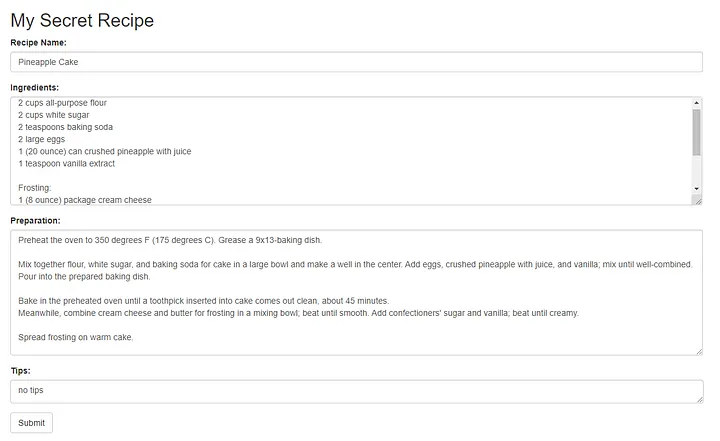
I developed a simple form so my grandma could write her recipe, and when hitting the submit button, it will send that information to our Integromat scenario. Remember, this is just an example; you can get the information from any source you want.
The data you provide will undergo processing through our Google Docs template, which is stored within our Google Drive. This step might seem challenging, but rest assured, the simplicity of the process makes it as easy as a piece of cake — and I couldn’t have put it better! 😄.
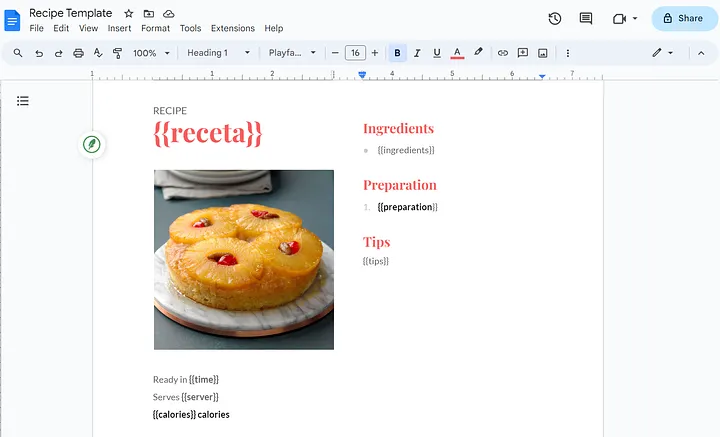
The primary benefit of using a Google Doc template is the capability to design complex documents and effortlessly incorporate data into the duplicates you create.
In this case, we will generate placeholders for substituting variables by encasing the preferred variables within two pairs of curly braces like this:
{{ingredients}} and {{preparation}}
Check out my recipe template here so you can see a real example:
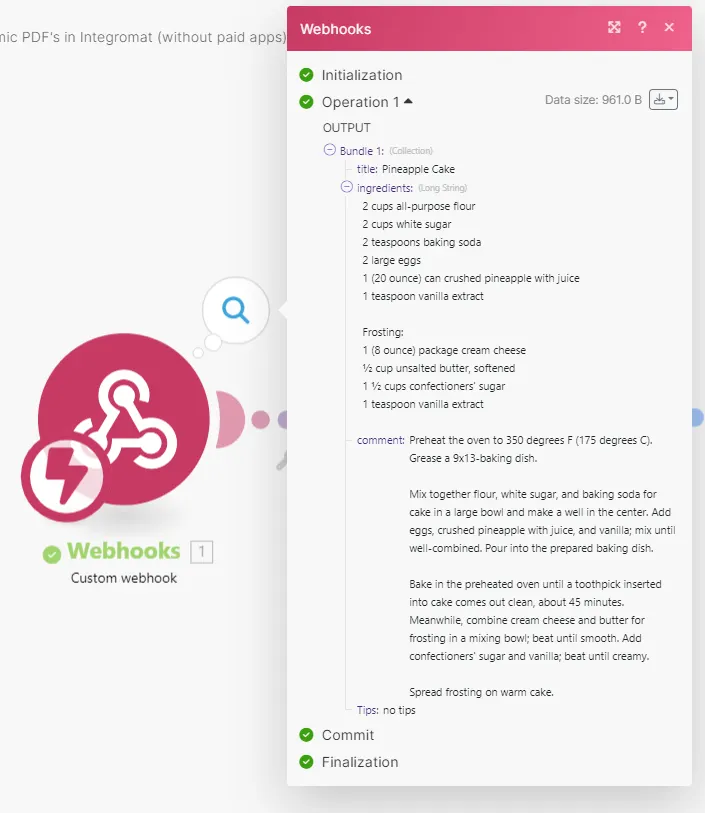
And here’s what the webhook receives:
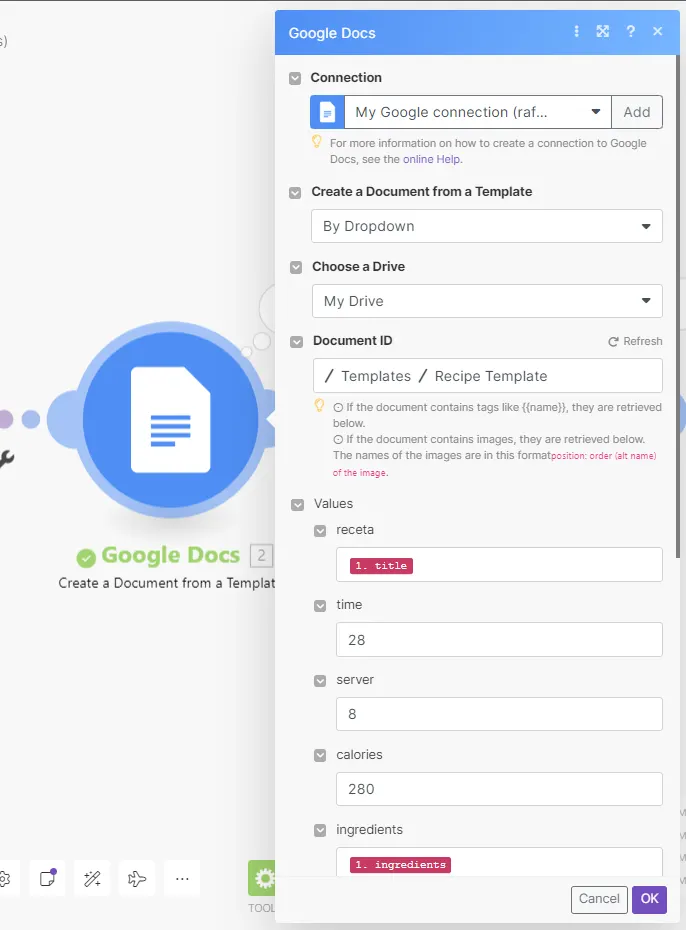
To begin, we will include a Google Docs Module and select the “Create a Document for a Template Action.” Click on the Add Button to connect your Google Account. Afterward, locate your desired Google Docs template within your Google Drive. Once selected, you will notice that the variables present in your Google Docs template become accessible in your Integromat Google Module. Now, proceed to map the fields sent from your Webhook or any alternate source to their corresponding variable fields in your module.
Next, add a Google Docs Download module and configure it to download the file from the previous module, very important, set the type to application/pdf, just like I show you in this next picture:
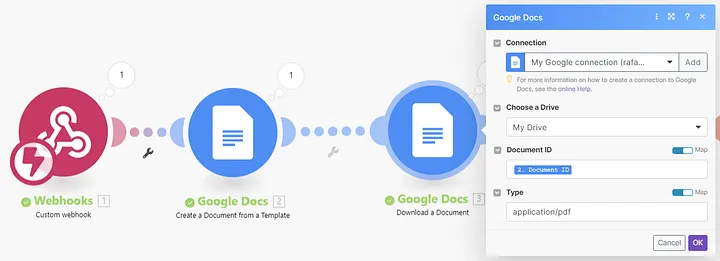
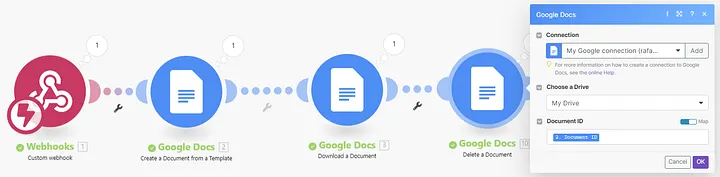
And here we have most of the scenario completed, now we will add a add a Delete Document module to delete the document generated from the template, as we don’t need it, make sure to set the Document ID to the Document ID you get in the Create a Document from a Template module.
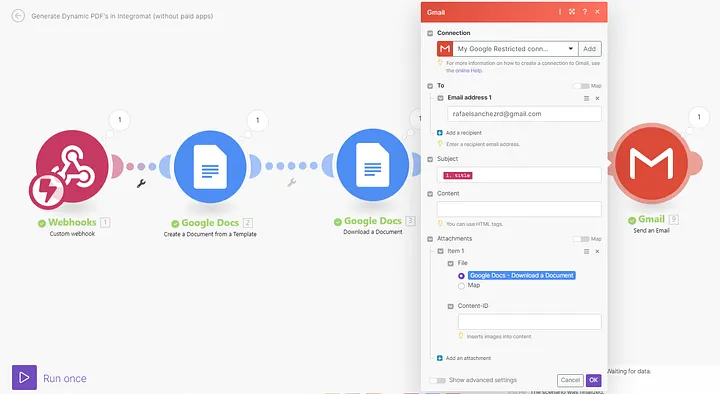
Finally, we will add our step to send the PDF to our email with a Sent Email Module, Follow the picture, add the attachment generated in the Download a Document module, and you will be done sending your PDF document.
The result is a PDF matching your template with the data from your data source.